How to Connect a Website Widget to n8n (2026)
Connect a website chat or lead widget to n8n: the native chat widget vs the webhook path, adding AI, wiring to your CRM, and the CORS and activation gotchas that break launches.
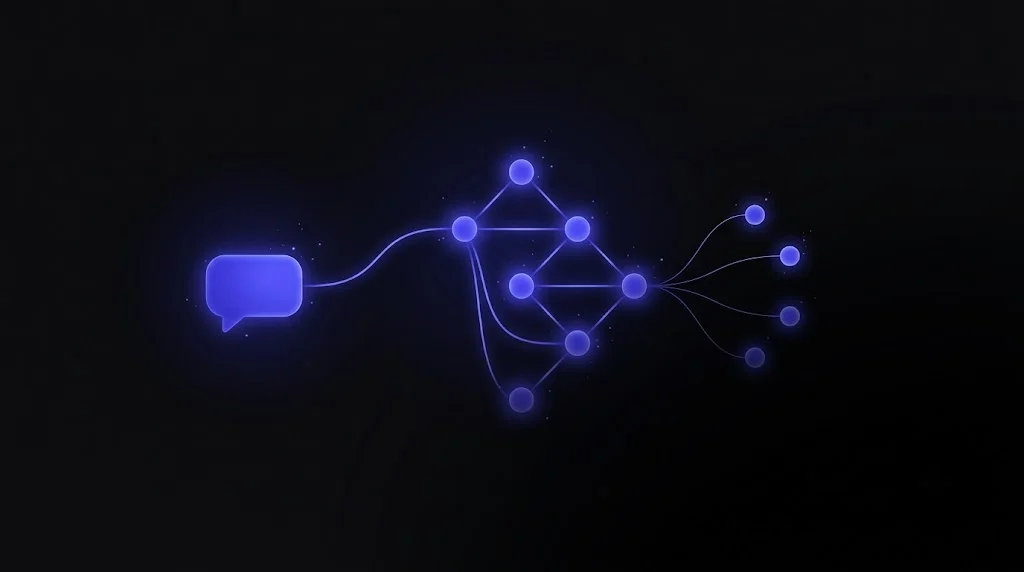
You have a workflow tool that can qualify a lead, write it to your CRM, notify sales, and book a meeting. You have a website. The missing piece is the widget that connects the two. Connecting a website widget to n8n is straightforward once you know there are two distinct paths, and that most launches fail for the same two boring reasons. This guide covers both paths, how to add AI, what to wire it to, and how to not get spammed.
What are the two ways to connect a widget to n8n?
Pick the right path up front and you save yourself a lot of pain.
| Native chat widget | Webhook | |
|---|---|---|
| Use for | An AI chat experience | Forms, callback buttons, third-party widgets |
| Front end | @n8n/chat (n8n gives you the UI) | Your own HTML or a tool like Typebot |
| n8n side | Chat Trigger node | Webhook plus Respond to Webhook nodes |
| Effort | Lowest, a drop-in snippet | Flexible, more wiring |
Most real deployments use the chat widget for AI conversations and the webhook for everything else, like a “request a callback” button or a newsletter form.
How do you embed n8n’s chat widget on your site?
n8n ships an official widget, @n8n/chat, that you drop onto any page. The CDN version is a single script:
<link href="https://cdn.jsdelivr.net/npm/@n8n/chat/dist/style.css" rel="stylesheet" />
<script type="module">
  import { createChat } from 'https://cdn.jsdelivr.net/npm/@n8n/chat/dist/chat.bundle.es.js';
  createChat({
    webhookUrl: 'https://YOUR-N8N-HOST/webhook/xxxxxxxx/chat'
  });
</script>
For a bundled app, install @n8n/chat from npm and call createChat the same way. The widget comes in three shapes:
- Window mode (the default) is the floating chat bubble in the corner, which is what you want on a landing page.
- Fullscreen mode mounts into a container that fills the page, for a dedicated chat page.
- Hosted chat means you embed nothing at all. n8n serves a ready-made chat page at the trigger URL and you link or iframe it, which is handy for a quick internal tool.
The widget talks to a Chat Trigger node in your workflow. That node controls authentication (none for public bots, basic auth for gated ones), the response mode, whether replies stream token by token, and the allowed origins for CORS. A couple of option names matter: chatInputKey in the widget must match the input key your AI Agent node reads, or messages arrive empty, and passing an auth token is done through the widget’s webhookConfig.headers.
How do you connect a custom form or callback button?
For anything that is not a chat, like a lead form or a request a callback button, skip the chat widget and POST straight to a Webhook node:
await fetch('https://YOUR-N8N-HOST/webhook/lead-capture', {
  method: 'POST',
  headers: { 'Content-Type': 'application/json' },
  body: JSON.stringify({ name, email, phone, source: 'landing-hero' })
});
Inside the workflow, the Respond to Webhook node returns a reply when the widget needs one, such as an AI answer or a confirmation. For fire-and-forget submissions like a form or a callback request, set the response to Immediately so the browser gets an instant 200 while the rest of the workflow keeps running in the background. This same pattern powers the website callback flow where a button press triggers an outbound call.
How do you add AI to the widget?
The chat is only as smart as the workflow behind it. The core is the AI Agent node, to which you attach:
- A chat model sub-node: OpenAI, Anthropic, Mistral, Google Vertex AI, or a local Ollama model, plus any OpenAI-compatible endpoint.
- A Memory sub-node keyed on the widget’s session, so the conversation has multi-turn context.
- Tools sub-nodes, so the agent can call other workflows, look up data, or hit an API.
For a knowledge base, n8n has dedicated Vector Store nodes (Pinecone, Qdrant, Weaviate, pgvector, and more). The usual pattern is an ingestion workflow that chunks and embeds your documents once, and a chat workflow that attaches the same store to the AI Agent as a retriever tool. This is the same retrieval-augmented setup behind a good lead-gen chatbot. Streaming replies work on the native chat path with a recent n8n version, though it currently has some reliability reports on n8n Cloud, so test it on your instance before you depend on it.
What can you wire it to?
This is where the widget earns its keep. Once a message or form hits n8n, you can fan out to anything. Five flows people actually ship:
- Lead-gen chat to CRM. The AI Agent qualifies on budget, intent, and email, then an IF branch writes qualified leads to HubSpot, Salesforce, or Zoho (or a Google Sheet for a lightweight start) and replies to the widget with a confirmation. See connecting an AI chatbot to HubSpot, Salesforce, and Zoho.
- Request a callback. A button posts the name, phone, and preferred time, n8n writes it to the CRM, pings sales on Slack or email, optionally holds a calendar slot, and texts the visitor a confirmation.
- Support bot with escalation. The agent answers from your knowledge base, and on low confidence or a “talk to a human” request it escalates to a live agent or a Slack channel with the conversation attached.
- Gated content or newsletter. The webhook validates the email, adds it to your CRM or email list, and sends a double opt-in.
- Booking. The chat collects intent, the agent calls a Cal.com or Google Calendar tool to find and book a slot, and sends a confirmation.
The lead-qualification logic in flow one is worth getting right; we break it down in AI lead qualification with function calling.
Which third-party widgets pair well with n8n?
You do not have to use n8n’s own widget. Two pair especially well:
- Typebot is a visual builder for designed, branching conversations with buttons and media. At handoff points its webhook block posts to an n8n webhook, n8n does the CRM or AI work, and Typebot resumes. Reach for it when the conversation needs real structure, not just a chat box.
- Chatwoot is a full support inbox across web, WhatsApp, and email. You register n8n as an agent bot, Chatwoot posts message events to your webhook, and n8n replies through the Chatwoot API. Two things to get right: set the webhook to respond Immediately (Chatwoot treats a slow reply as failed) and ignore the bot’s own outgoing messages so you do not create an infinite self-reply loop.
Use n8n’s own widget for a simple AI chat you fully control, Typebot for branching designed flows, and Chatwoot when you need a real human-handoff support desk.
How do you secure it in production?
A public webhook is a public endpoint, and it will get found and spammed. The robust pattern is to not let the browser hit n8n directly. Put a proxy in front, either your own backend or a Cloudflare Worker, which:
- Fixes CORS in one place.
- Hides the real webhook URL.
- Injects a secret header that the workflow validates with an IF node.
- Centralizes rate limiting and a CAPTCHA like Turnstile on lead forms and callback buttons.
If you already deploy on Cloudflare, a Worker in front of n8n is a natural fit; the Cloudflare AI capabilities guide covers that stack. And a rule with no exceptions: model and CRM API keys live in n8n credentials on the server, never in the widget.
Why isn’t my widget working?
When a widget goes silent, it is almost always one of two things, in this order:
- The workflow is not active, or you left the test URL in production. The production URL (
/webhook/...) only responds when the workflow is active and published. The test URL (/webhook-test/...) fires exactly once, while you click “listen for test event” in the editor, then dies. Activate the workflow and use the production URL. - CORS origin mismatch. The browser origin must match n8n’s allowed origins exactly. A www versus apex or http versus https difference is a silent killer: the widget loads, messages vanish, and the console shows a blocked request. On self-hosted n8n, set
N8N_DEFAULT_CORS=TRUEandN8N_CORS_ALLOW_ORIGINto your exact origin and restart. If you serve several domains, be aware of a known multi-origin bug and consider the proxy approach instead.
Other usual suspects: a self-hosted WEBHOOK_URL misconfigured so the generated URL is unreachable, long AI calls timing out a caller (respond immediately and work async), and a chatInputKey that does not match what the agent reads.
The bottom line
For an AI chat widget, use @n8n/chat with a Chat Trigger node in window mode, and get CORS and workflow activation right. For forms, callbacks, and third-party widgets, use the Webhook node with Respond to Webhook, and in production proxy through your own backend or a Cloudflare Worker for CORS, secret-hiding, and bot protection. Nail those and the widget becomes the front door to every automation you have already built. If you would rather have it built and secured for you, that is exactly what our AI Agent Development team does.
Frequently Asked Questions
How do you connect a chat widget to n8n?
Use the @n8n/chat package with a Chat Trigger node. You add one CDN script to your site that points at the Chat Trigger's production webhook URL, and n8n renders a floating chat widget that runs your workflow behind it. For a custom widget or form, use the Webhook node instead and POST JSON to it from your front end.
What is the difference between the Chat Trigger and Webhook nodes?
The Chat Trigger node is purpose-built for chat and pairs with the ready-made @n8n/chat widget, handling sessions, memory keys, and streaming. The Webhook node is generic - any HTML form, callback button, or third-party widget can POST to it, and you return a reply with the Respond to Webhook node. Use Chat Trigger for AI chat, Webhook for everything else.
Why is my n8n widget not working?
The two most common causes are an inactive workflow and a CORS mismatch. The production webhook URL only works when the workflow is active, and the test URL fires only once per click in the editor. Separately, the browser origin must match n8n's allowed origins exactly, including www versus apex and http versus https. Fix activation first, then CORS.
How do you secure a public n8n webhook for a website widget?
Put a proxy in front of n8n - your own backend or a Cloudflare Worker - so the browser never hits n8n directly. The proxy hides the real webhook URL, injects a secret header n8n validates, and centralizes rate limiting and a CAPTCHA like Turnstile. Keep all model and CRM API keys in n8n credentials server-side, never in the widget.
Can you add AI and a knowledge base to an n8n chat widget?
Yes. Attach an AI Agent node with a chat model (OpenAI, Anthropic, Mistral, Vertex, or a local Ollama model), a Memory sub-node keyed on the session, and for a knowledge base a Vector Store node such as Pinecone, Qdrant, or pgvector used as a retriever tool. Streaming token-by-token replies works on the native chat path with a recent n8n version.
Complementary NomadX Services
Related Articles
Get Started for Free
Schedule a free consultation with our AI agents team. 30-minute call, actionable results in days.
Every engagement is scoped by our principal architect, Adrian Vale: 20+ years in production engineering, 40+ professional certifications. Meet Adrian
Talk to an Expert